How to build and upload 150 lineups
The whole trip from an empty contest to 150 entries updated on FanDuel, in nine steps. Every screenshot comes from a real run: a college football Saturday main slate, in a contest with 35,928 entries. Tap any screenshot to see it full size.
Before you start
150 entries in the contest
Enter the contest on FanDuel once for each lineup you want (any lineup will do for now). FanDuel only lets you edit entries that already exist, so this is what the upload changes.A members login
The lineup builder is a members tool. The rest of this guide is free to read, and every button named here is what you will see on the page.
Build and rank your lineups
Tell the builder what contest you are in, look at the field it expects you to face, then let the simulation rank lineups against that field.
-
Read your contest's numbers on FanDuel
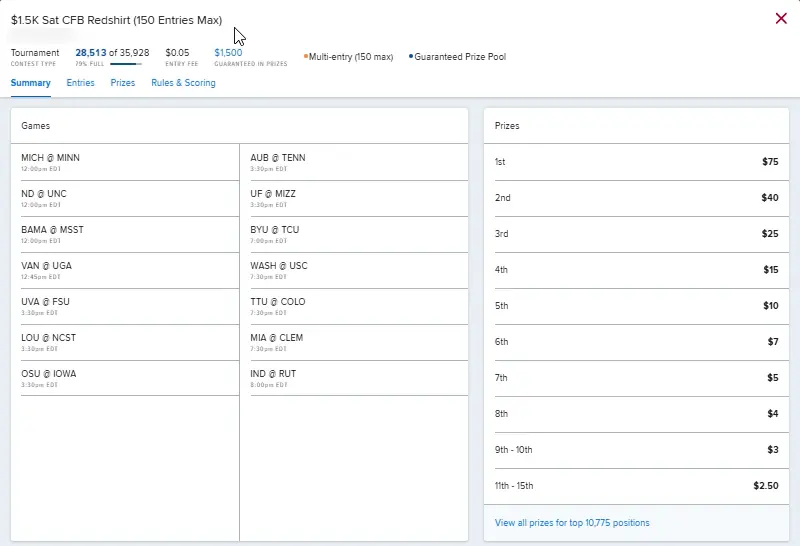
Open the contest on FanDuel and note three numbers: total entries (here 35,928), the entry fee, and how many places get paid (the View all prizes for top 10,775 positions link).
-
Set up the contest in the builder
Pick College football (or NFL), FanDuel and your slate, then type Total entries, Entry fee ($) and Field paid (spots). Save contest keeps it for next time.
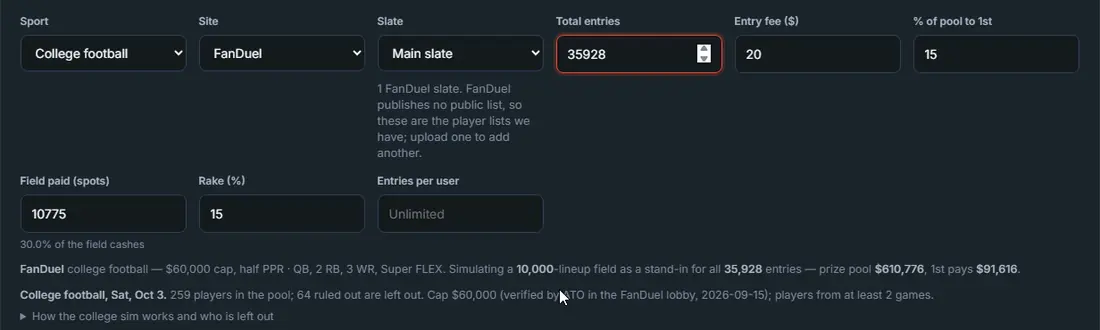
In this run only total entries and paid spots were changed. Type your real entry fee too: it sets the prize pool the ranking uses. -
Generate the field and read the ownership
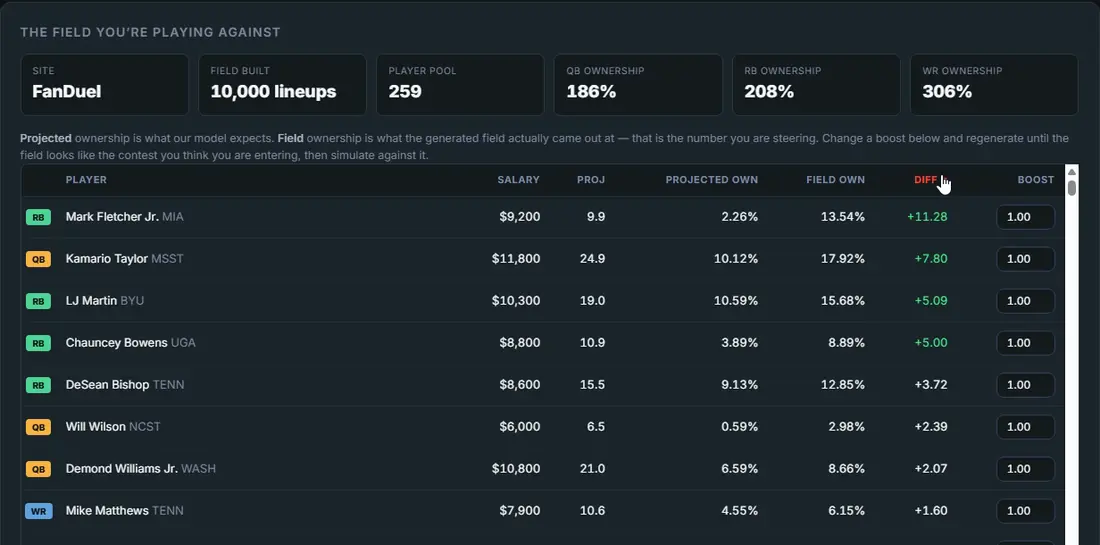
Press Generate field and open the Field tab. Projected own is what our model expects; Field own is what the generated field came out at. Sort by Diff to see the biggest gaps first.
-
Adjust boosts and regenerate
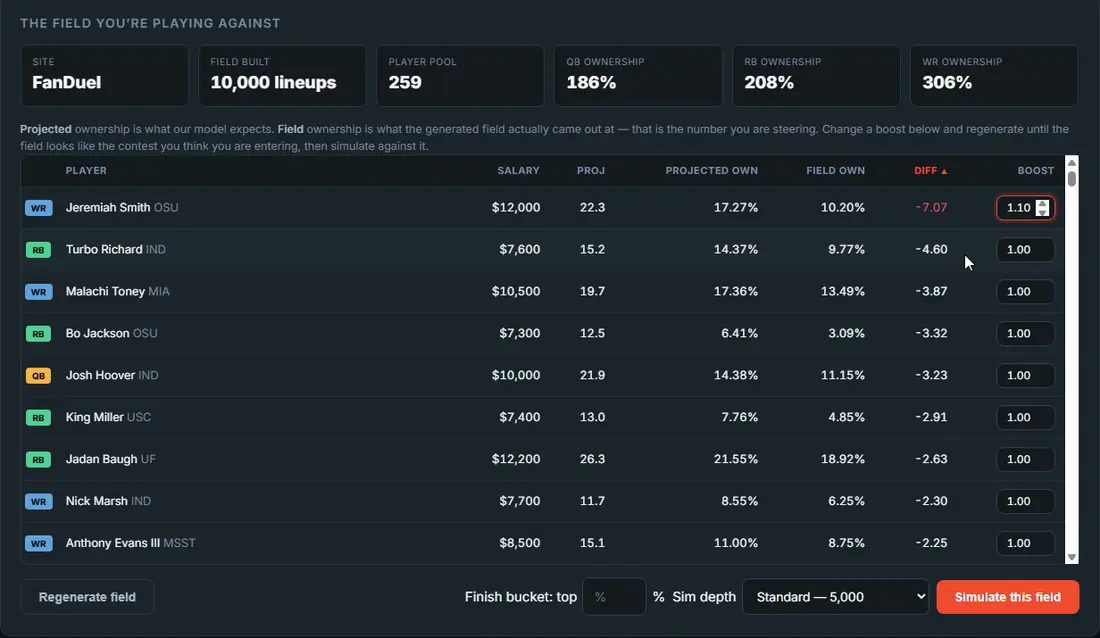
If you think the field will be on a player more or less than shown, change his Boost (1.00 leaves him alone, above 1 means more, below 1 means less) and press Regenerate field. Check Field own again and repeat until the field looks like your contest.
-
Simulate the field
Under the field table, leave Sim depth on Standard (5,000 sims) and press Simulate this field. Results land on the Lineups tab, ranked against that field.

-
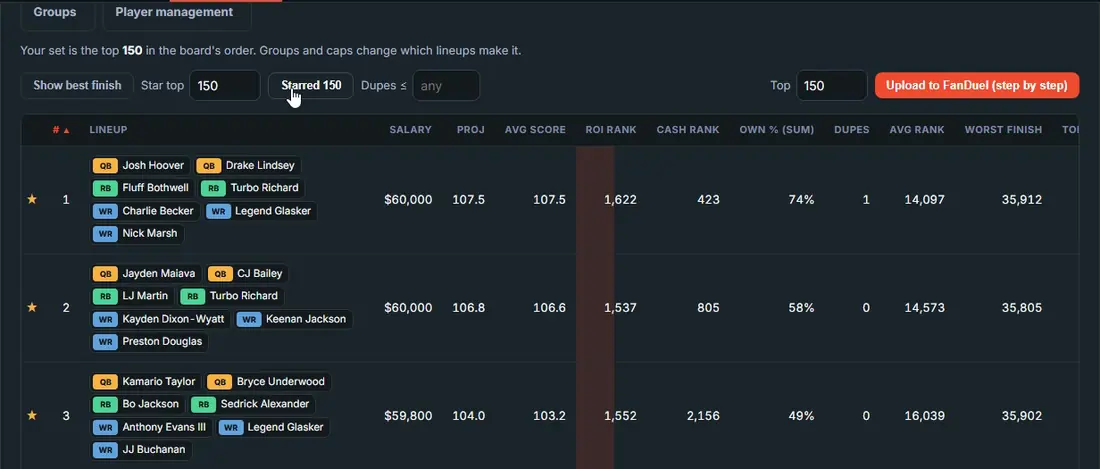
Star your top 150
On the Lineups tab, leave Star top at 150 and press Star. Starred lineups go to Favorites and stay put if you run again. The Top box sets how many go into your upload.
Put the lineups into your entries
FanDuel takes lineups through its own entries file. The builder fills it; you upload it on FanDuel's CSV Edit page.
-
Fill FanDuel's entries file
Press Upload to FanDuel (step by step). Get the entries file from FanDuel (Upcoming, then CSV Edit, then download the template), press Choose my FanDuel entries file, and pick it. The builder saves a filled copy ending in -ato-filled.csv.
Use the entries template, not the player list you used to load the slate: the player list has no entry IDs.
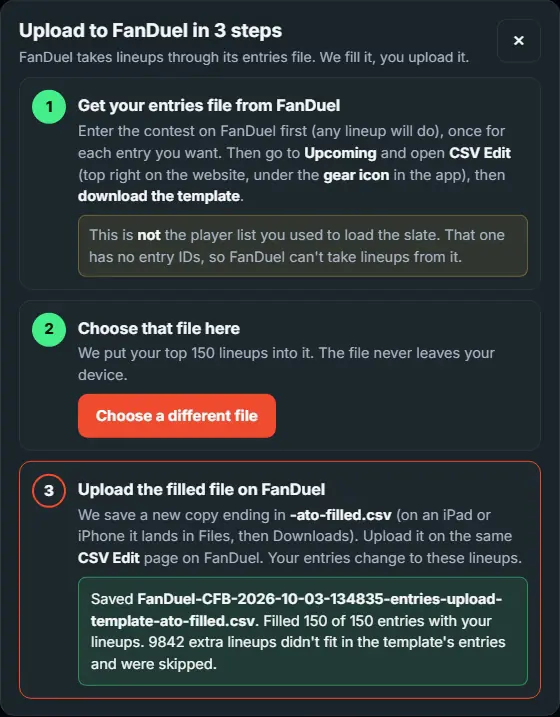
After a file is filled, the step 2 button changes to "Choose a different file". -
Upload it with CSV Edit on FanDuel
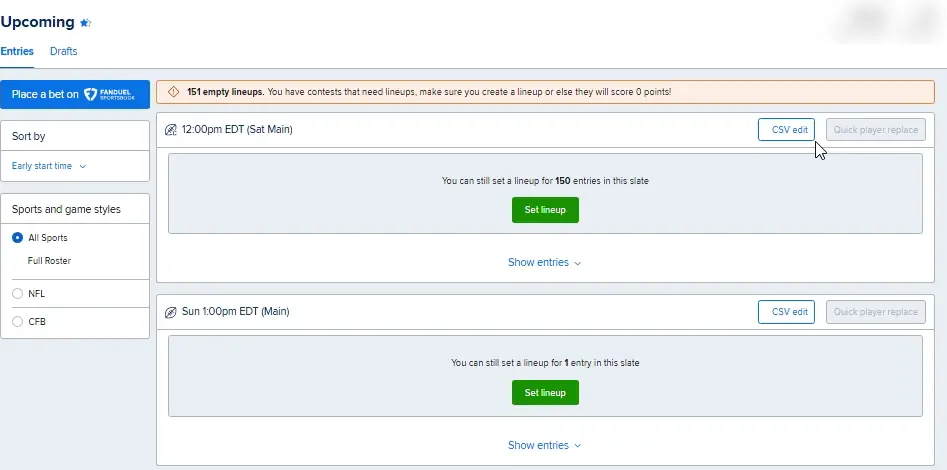
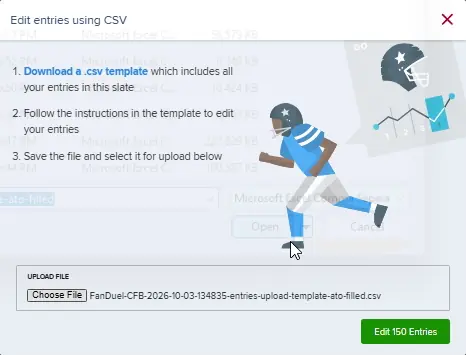
On FanDuel go to Upcoming and press CSV edit (top right on the website, under the gear icon in the app). Press Choose File, pick the -ato-filled.csv file, then Edit 150 Entries.
-
Refresh and check your lineups
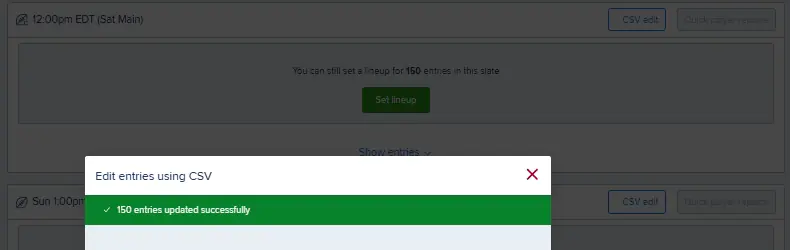
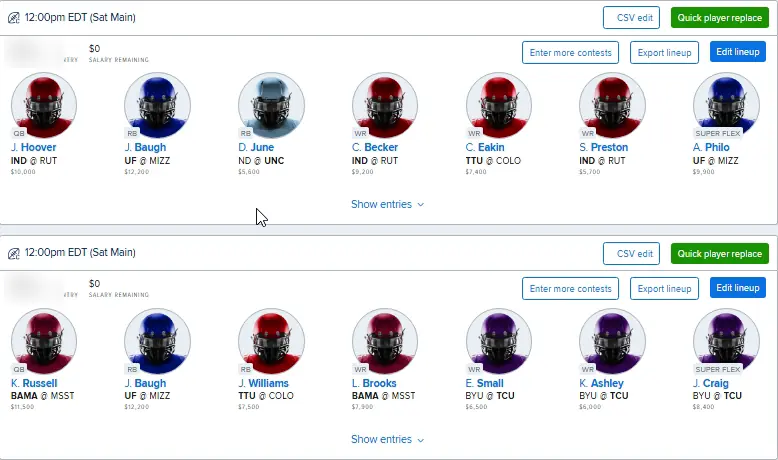
FanDuel confirms 150 entries updated successfully. Refresh the page and every entry shows its new lineup.
Open the builder
Same nine steps every slate. New to DFS? Start with the free pages below.